Posts

Database Connection using NODE JS example
Image
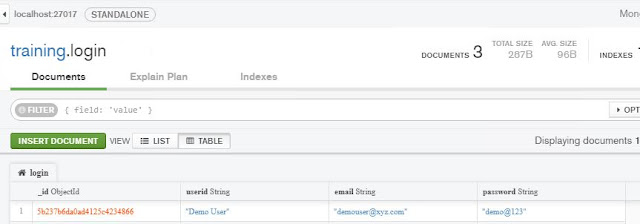
Database Connection using NODE JS example In my earlier article, you have learned how to create your first node js application and how to create node js web application. If you have not read it, I am suggesting you to read these two articles. Below are the link of these articles. http://java.gunustories.com/2018/06/create-first-node-js-application.html http://java.gunustories.com/2018/06/generate-node-js-web-application.html After creating a web application, you need to deal with database. So before writing node js script, you need to download and install MongoDB in your PC. To download MongoDB go to the https://www.mongodb.com/download-center?jmp=nav#community link. Before start writing node js database connection, please insure that MongoDB is running in your PC. Now  open app.js file and write below configuration to connect with MongoDB. const MongoClient = require('mongodb').MongoClient var db MongoClient.connect('mongodb://localhost:27017/', (er...
Generate NODE JS web application - Express generator module

Auto generate NODE JS web application folder structure . This article is for beginners who wants to create a web application using NODE JS but don’t know about the project structure and basic files inside the folders.  You can create a folder Skelton using   Express generator module. It’s very simple to generate web application using express-generator. Before auto generate project structure, you need to ensure that NODE JS is properly installed in you PC. Must read   https://java.gunustories.com/2018/06/create-first-node-js-application.html article to ensure that NODE JS framework is installed in your PC.  You just need to follow below instruction to generate it. 1) Create a folder NodeJSExamples in your C:\ drive. 2) OPEN Command prompt and run cd NodeJSExamples command. 3) run $ npm install express-generator -g command to install express generator 4) run $ express --view=hbs mywebapp command. This command will generate the folder struc...

Create First NODE JS application

Image
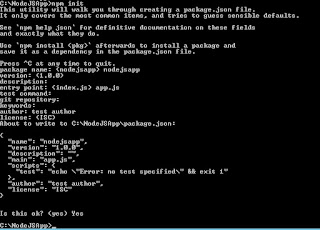
Before creating the NODE JS application, please ensure that you have successfully install NODE JS server on your PC. To download and setup the NODE JS, follow https://nodejs.org/en/download/ After setup node js, check it is installed successfully using below steps. 1)       Open command prompt. 2)       Run node –v command 3)       It should show current version of node js    Create your first project using below steps: 1)       Open command prompt. 2)       Create a new folder named “NodeJSApp”. Use md NodeJSApp command. 3)       Run cd NodeJSApp.       4)    Run npm init command and follow instruction as below. Ensure you give app.js as a starting script file. This will create package.json file 5)       Open this project in “Visual St...

how to setup/configure hibernate ORM in your spring project

This article is for how to setup/configure hibernate ORM in your spring project. Add below maven dependency in pom.xml <dependency> <groupId>org.hibernate</groupId> <artifactId>hibernate-core</artifactId> <version>4.0.1.Final</version> </dependency> <dependency> <groupId>org.hibernate</groupId> <artifactId>hibernate-validator</artifactId> <version>4.2.0.Final</version> </dependency> <dependency> <groupId>org.hibernate.common</groupId> <artifactId>hibernate-commons-annotations</artifactId> <version>4.0.1.Final</version> <classifier>tests</classifier> </dependency> <dependency> <groupId>org.hibernate.javax.persistence</groupId> <artifactId>hibernate-jpa-2.0-api</artifactId> <version>1.0.1.Final</versio...

Recent Post

Recent Posts Widget